Saturday, 23 August 2014

TortoiseSVN icons not showing up under Windows 7

Problem

Not to brag about it but SVN is probably the most widely used versioning system. It is used in most of the top companies. Now here is the problem I faced not once but twice. Tortoise SVN  (download) is a widely used UI based svn client. It supports all basic svn operations and has a nice UI for looking at the history, diffs and merge.  It even has nice overlay images to denote if you file is updated , modified or has some conflict. It so happens in windows 7 that after installing the software the overlay images do not appear. I have used it for almost a year now without any problem but today when I tried to configure it same problem appeared (overlay images not showing up). So below I will provide the simplest way to resolve this.


Solution

Once you have installed the software and overlay icons do not show up simply repair the installation.

From the TortoiseSVN lead developer (2010-04-17) : "You might have to do a repair install (start the installer again, then choose 'repair') after you've updated to 1.6.8. Otherwise the overlay icons might not show up properly. Sorry for the inconvenience."

You can do it the following way

  1. Launch the setup again and select repair.

  2. On next screen select next.

  3. In the next screen you will see the applications that the repair wizard will attempt to restart. Avoid selecting second option as you will unnecessarily have to reboot your machine. Two important applications that will restart are
    1. Svn status cache and
    2. Windows Explorer


    Other applications may include any svn processes that may be still in progress like checkout of a branch.

That should do it. But if it is still not resolved I suggest go through the links in "Related Links" sections. There are some useful answer on Stack overflow. But mind most of them include playing with system registry. Unless you are sure do not mess with it :).


Related Links

Sunday, 17 August 2014

Reading password from command line in Java using java.io.Console

Background

Sometime we need to get passwords from the user. Passwords is a very crucial and secret information. We generally show the text while entering password as '*' characters or not display the characters at all. Java provides in built facility to enter passwords that are not echoed while entering. We are going to see this example.

java.io.console was introduced in Java 6 and has far more convenient methods than plain streams  - System.in and System.out. Also note that this class is Singleton. The Console class provides access to an instance of Reader and PrintWriter using the methods reader() and writer(), respectively

Documentation

We are going to use readPassword() method of Console class is java.io package.

Method documentation is as follows - 

   /**
    * Reads a password or passphrase from the console with echoing disabled
    *
    * @throws IOError
    *         If an I/O error occurs.
    *
    * @return  A character array containing the password or passphrase read
    *          from the console, not including any line-termination characters,
    *          or <tt>null</tt> if an end of stream has been reached.
    */
    public char[] readPassword() {
        return readPassword("");
    }


Code Example


/*
 * author : athakur
 */

public class HelloWorld {
    
    public static void main(String args[]) throws IOException {
        Console console = System.console();
        if(console == null) {
            //This is a bug in eclipse IDE
            //password will be shown on console
            System.out.println("Could not get Console. Falling back to default input mechanism");
            System.out.println("Enter password : ");

            String password = new BufferedReader(new InputStreamReader(System.in)).readLine();

            System.out.println("Password : " + password); 

            //process password

        }

        else {

            //intended behavior
            System.out.println("Enter password : ");

            char[] password = console.readPassword();

             System.out.println("Password : " + Arrays.toString(password)); 

            //process password

        }

    }

}

Generally we would store the password in DB or validate. In above code I am printing it just to demonstrate it's working. Note how the password is not printed when user types it in.


When will it fail?

You must have notices the null check in the beginning of the code. That is because there is a know bug (bug #122429) in Eclipse IDE. We cannot get Console instance. So we have added a null check. However the mechanism will work just fine in normal console.


Related Links

Saturday, 16 August 2014

Using Groovy to send Emails

Background

In this post we will see how can we write a groovy script to send emails. I am going to use javax.mail and javax.activation for this. To setup groovy environment you can refer to one of my earlier posts - 


Code

/**
 * @author athakur
 *
 */

@Grapes([
    @Grab(group='javax.mail', module='mail', version='1.4.7'),
    @Grab(group='javax.activation', module='activation', version='1.1.1'),
    @GrabConfig(systemClassLoader=true)
])

import javax.mail.internet.*;
import javax.mail.*
import javax.activation.*

class EmailSender {
    
    public static void main(def args){
        //to test the script
        EmailSender emailSender = new EmailSender();
        emailSender.sendmail();
    }
    
    def static message = "Test Message";
    def static subject = "Test Message Subject";
    def static toAddress = "test1@opensourceforgeeks.com";
    def static fromAddress = "test2@opensourceforgeeks.com";
    def static host = "test.email.opensourceforgeeks.com";
    def static port = "25";
    
    public EmailSender() {
        
    }

    def static sendmail() {
        sendmail(message, subject, toAddress, fromAddress, host, port);
    }
    
    def static sendmail(String message ,String subject, String toAddress, String fromAddress, String host, String port){
        Properties mprops = new Properties();
        mprops.setProperty("mail.transport.protocol","smtp");
        mprops.setProperty("mail.host",host);
        mprops.setProperty("mail.smtp.port",port);

        Session lSession = Session.getDefaultInstance(mprops,null);
        MimeMessage msg = new MimeMessage(lSession);

        StringTokenizer tok = new StringTokenizer(toAddress,";");
        ArrayList emailTos = new ArrayList();
        while(tok.hasMoreElements()){
            emailTos.add(new InternetAddress(tok.nextElement().toString()));
        }
        InternetAddress[] to = new InternetAddress[emailTos.size()];
        to = (InternetAddress[]) emailTos.toArray(to);
        msg.setRecipients(MimeMessage.RecipientType.TO,to);
        msg.setFrom(new InternetAddress(fromAddress));
        msg.setSubject(subject);
        msg.setText(message)

        Transport transporter = lSession.getTransport("smtp");
        transporter.connect();
        transporter.send(msg);
        
        println("Message sent");
    }
}


 Then you can simply run it with groovy EmailSender.groovy.

Note :  you can import all packages you need using the grab syntax mentioned in the top of the script.
 To know the group, module and version you can search the Maven repository.  In the link there is a separate tab for grape like there is for ivy, maven or gradle. So you can directly pick up the syntax from there. For example if you search for javax.activation you can see the following syntax under grape tab - 


@Grapes(

        @Grab(group='javax.mail', module='mailapi', version='1.4.3')

)


Friday, 15 August 2014

How to capture arguments passed to a Groovy script?

It is very much similar to Java and you can use the same java syntax. For eg.

class TestExecutor {

    public static void main(def args) {
        println("Printing arguments");
        for(String arguments : args) {
            println (arguments);
        }
    }
} 


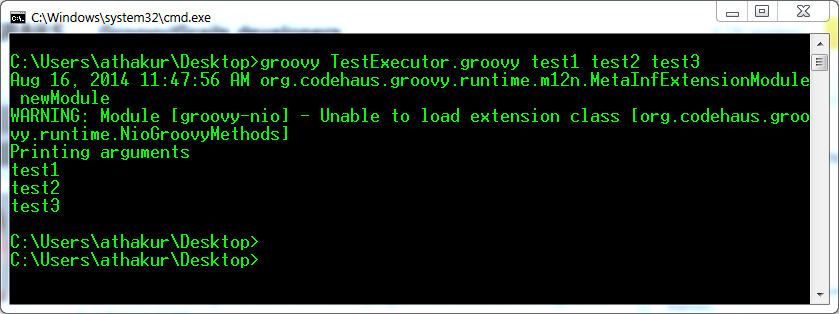
Run it and you should see the arguments printed


Also note if you do not provide main method or provide one like in above example then you can get arguments as args[i] but you can change the name of the array (again same as java). So you can have something like -

public static void main(def argsNew) {

    println("Printing arguments");

    for(String arguments : argsNew) {

        //using args in above for loop will throw error

        println (arguments);

    }

}


Point being it's not something that is hard-coded. Finally as suggested in other answer you can always use CliBuilder for smart parsing. But again in that too it internally used def options = cli.parse(args).

Finally there is always the hard way to do things (Just putting here for code coverage and additional information - no need to use this code for fetching arguments) -

import groovy.lang.Binding;
Binding binding = new Binding();
int x = 1
for (a in this.args) {
  println("arg$x: " + a)
  binding.setProperty("arg$x", a);
  x=x+1
}
println binding.getProperty("arg1")
println binding.getProperty("arg2")
println binding.getProperty("arg3") 

Important Links

Wednesday, 13 August 2014

Executing Shell commands in Groovy

Background

Groovy is a dynamic java language that runs on JVM. If you are familiar with Java that you will find it very easy to understand and code in Groovy. Will not go into much details now. You can refer to my earlier posts - 

Goal of this post is to show how easy it is to execute shell commands from Groovy. I am using Windows for demonstrating this but should be irrespective of OS you are using. All you have to do is make sure cURL is installed on your system which I will be using to demonstrate this example. You can refer to following posts on cURL


To the code....

 Put the following code in a file name GroovyTest.groovy and run it

class GroovyTest {
    public static void main(def args){
        def url = 'http://mail.google.com';
        println("Output : " + executeCurlCommand(url));
    }    
    
    def static executeCurlCommand(URL){
        
        def url = "curl " + URL;
        def proc = url.execute();
        def outputStream = new StringBuffer();
        proc.waitForProcessOutput(outputStream, System.err)
        return outputStream.toString();
        
        
    }
}

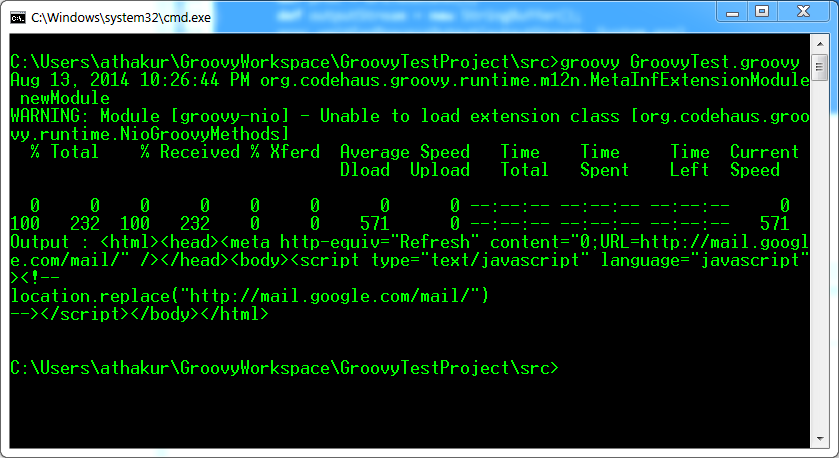
After running you can see the output same as executing the command on your console. If you need all outputs on standard output you can do

proc.waitForProcessOutput(System.out, System.err);


You can see the output by executing the same command in console

t> UA-39527780-1 back to top