Thursday, 12 October 2017

Create a user from IAM in AWS

Background

In this post we will see how we can create a new user using IAM in AWS. We will also see couple of things around IAM as well. But the goal is to create a new user and see how we can use it to connect to AWS from command line.


IAM is Identity access management. IAM is service used to create and manage access to AWS. This includes user and group management. 

IAM - Identity access management

Once you land on IAM dashboard you should be able to see a summary of what you have already in place - users, groups , roles etc.

NOTE :  IAM is global. There is no region associated to it. You can notice this in top right corner where you see region selected for various AWS services.


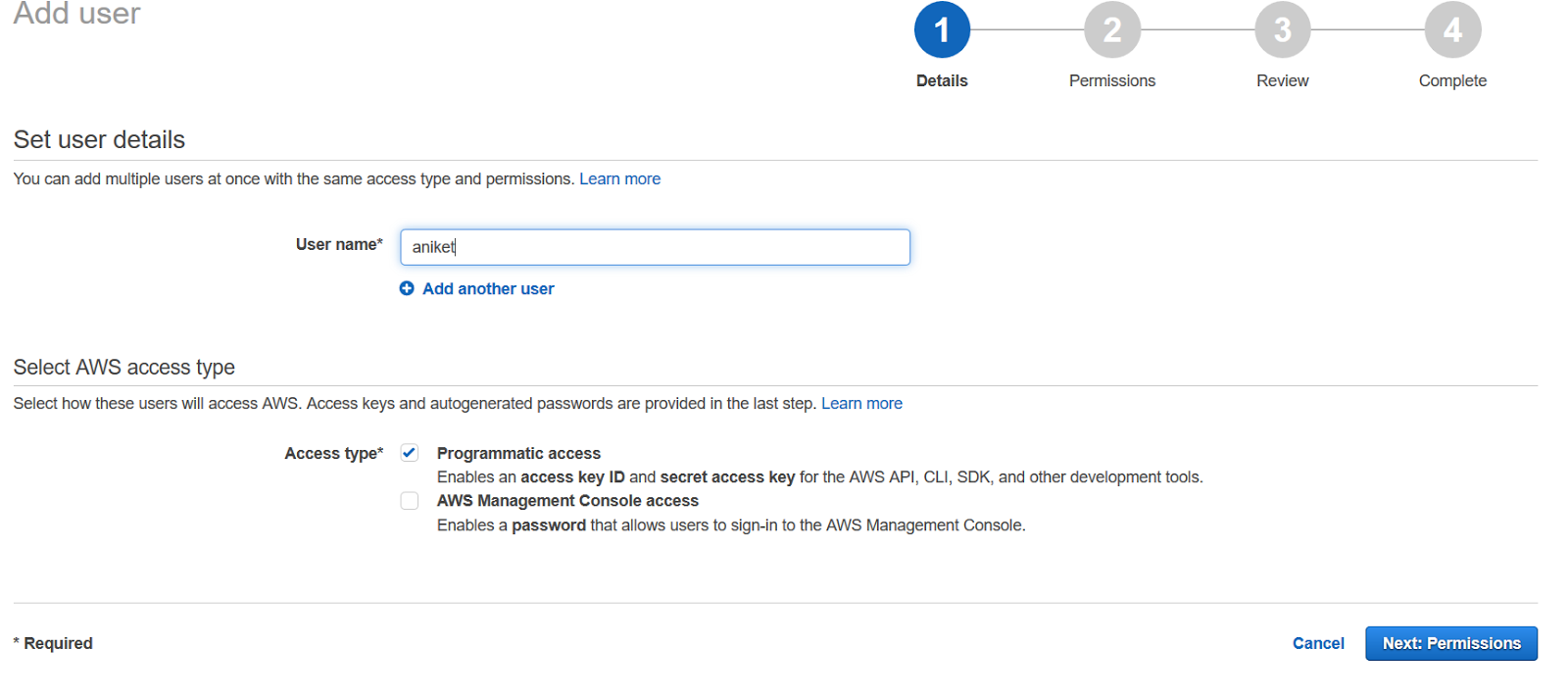
Now go to Users tab. Now click on Add users. Next select the username and then select the access type -

Programmatic access : Enables an access key ID and secret access key for the AWS API, CLI, SDK, and other development tools.
AWS Management Console access : Enables a password that allows users to sign-in to the AWS Management Console. 

You can select both as well. Console access is associated with an username and password where as programmatic access corresponds to access key id and secret access key. 

NOTE : you cannot use accesskey id and secret access key to log into console and you cannot use username and password to programmatically access AWS. Also  by default user created will have no permissions.

For now let's create a user with just programmatic access. I am using username as aniket which is my name.


Next step is to add permissions. This essentially tells what is the intent of this user. You can 
  1. Either assign user to a group (which has set of permissions)
  2. Copy permissions from existing user
  3. or assign one of the predefined permissions
I am going to take 3rd route. What I really want to do is allow this user with administrator privileges but not allow to change IAM setting - Power user is exactly what we need. So go ahead and select that -


Finally review and create your user. You should now see your access key and secret key. Note it down somewhere. You can also download it as CSV - there is an option to do so on top left corner.


NOTE : These credentials are shown only once on creation. So you can download and store the csv in secure location. If you loose then you will have to regenerate these.

 
That's it now lets see how we can use this to access AWS. If it was console access you could directly go to AWS console , use username password from csv and log in. Since this is programmatic we need to use AWS CLI (command line interface.)

As you can see in above link AWS cli is program you need to download and configure it on your local machine. I am going to use my EC2 instance running Amazon Linuz AMI. It has AWS Cli integrated.

Try running

  • aws s3 ls
This is suppose to list all your buckets. However this does not work and gives "Unable to locate credentials error". That means you need to configure your AWS cli to tell it your access key and secret key.

So type

  • aws  configure
You need to provide access key, secret key as we had downloaded it from IAM console in the csv file.


NOTE : Please don't use above creds. I have already deleted those. You can generate creds specific to your user and use it there.

These creds are stored in path ~/.aws/credentials file.


You can view all the AWS region names here -

Since I am based out of Mumbai, India I am going to use - "ap-south-1". As you can see athakur is a bucket created in my S3.

NOTE :  Though this is an option it is not recommended. what if you have this across 10 EC2 instances and one of it is compromised. You will generate new creds and apply to all? Definitely not a good way. You need to use IAM roles for this. You need to create a role for EC2 that provides access only to S3.

 NOTE : IAM can integrate with AD to add SSO functionality.

Related Links

Hosting a static website on Amazon AWS using EC2

Background

This post assumes you are familiar with Amazon AWS services, specially EC2 which we are going to use today to see how we can deploy a static website in a minute. If not kindly refer to my earlier posts in the same -


 Hosting a static website on Amazon AWS using EC2

Go ahead and launch Amazon Linux AMI on EC2. Keep all the configurations default except the security group. We are not really interested in others. In security group you need to allow ports corresponding to, ssh (22), http (80) and https(443) protocols. We are going to use http protocol for this demo. It looks like following for me -


 NOTE :  We need to SSH into your EC2 instance to host our static website. So we need that port open.

Once you have SSHed into your machine. If you don't know how to do this please refer my earlier post (linked in background and related links section). Once done follow below steps -
  1. sudo su 
  2.  yum update
  3. yum install httpd
  4. service httpd status
  5. service httpd start
  6. chkconfig httpd on
 Understanding above commands -
  1.  sudo su will elevate your role to super user. You really don't need this. But I generally do it since I like root user :)
  2. Do a update just to ensure you have the latest patches installed so that you are covered from a security standpoint.
  3. Next install httpd. This is a http daemon used to hist your static website. This essentially listens on port 80 (http) and serves request back. More details on Wiki.
  4. Next we check whether httpd daemon is up and running. service is the command used for that. 1st run should say that this service is stopped.
  5. Now you can start up this service with same command but using start. Again you can rerun above command just to make sure your service is up and running.
  6. chkconfig checks whether service is configured for startup. This commands guarantees httpd service starts on system startup.


 Now that we have out httpd service up and running, you can simply hit your public DNS and see what you can view. It should ideally show your default apache page like follows -


 You can get the public DNS from your EC2 dashboard -


 Now lets try to show our custom webpage. For this go to -
  • /var/www/html
Here create a file called index.html and paste your html content there and save it.


 That's it. Refresh your page and see if you can view your html changes.


 Let me know if there are any questions. Thanks.


If you want to see how a static website directly from S3 you can view following video -


Related Links


Sunday, 10 September 2017

Installing and Using OpenGrok on Mac OS X

Background

In previous couple of posts we saw how we can setup git repositories, install git client and maintain your codebase. 
In this post we will see how to set up opengrok. This is a code base search tool that you can use to index and search your huge complex codebase. I am going to show this on my mac laptop. If you want to setup a proper server please refer to official documentation.


Installing and Using OpenGrok on Mac OS X

I am going to use Homebrew to do most of the setup here. If you are not aware of homebrew then you can read -
 Couple of things you need to install before are -
  • A servlet container like GlassFish or Tomcat to run and deploy your grok server. I will use tomcat.
  • Exuberant Ctags for analysis.
You can run following commands to set these up -
  • brew update
  • brew install tomcat
  • brew install ctags 
You can just type catalina to see tomcat is properly installed -


Next set environment variable as follows -
  • export OPENGROK_TOMCAT_BASE=/usr/local/Cellar/tomcat/8.5.20/libexec
 For path you can refer to catalina screenshot above. This environment variable will basically tell where grok needs to be deployed.

Download the latest opengrok binary from-
 I am using opengrok-1.1-rc13.tar.gz.

Next go yo your opengrok bin directory. In my case it is -
  • /Users/athakur/Documents/Softwares/opengrok-1.1-rc13/bin
and run -
  • ./OpenGrok deploy
 This will deploy grok code on your tomcat container. Now start the tomcat container


 You can now access it via -


 The error you see is ok since we have not provided our codebase source directory yet.

Noe lets add source directory. My code is in-
  •  ~/Documents/git/DataStructures
NOTE : DataStructures is a local copy of my github repo -
I am going to maintain all codebase references in
  • ~/local_repos/src/
So create a directory and add soft links as below -


 Now it's time to define your code directory that opengrok can understand. So define another environment variable -

  • export OPENGROK_INSTANCE_BASE=/Users/athakur/local_repos

That's now lets index this content. To index it go to you opengrok bin directory and run -
  • ./OpenGrok index.

You can see it automatically creates directory it needs. Just make sure it has appropriate permissions -


That's it you can refresh grok page and start searching code.


 NOTE : For every update to your actual repository or for any new repository getting added you need to call ./Opengrok index to index it. You can probably write a cron job that does an automatic pull of your repository and runs index on it.


Related Links

Saturday, 2 September 2017

Understanding database indexes - Part 2

Background

Some time back we took a look at what database indexing is and how it internally works. -
In this post we will see database indexing more from a development design perspective. Many of you might be of the impression that database indexes, tables , performance, lookups maybe responsibility of database admins. Though this might be true to some extent indexes selection, and constructing where clause is developers responsibility and poor choice of indexes and where clause may often lead to performance issues causing queries to run slow. So whenever you are developing an application that requires database interactions as a developer it is very important that you design your indexes first. How do we do that?  - We will see that in sometime. 

Understanding database indexes - Part 2

An index lookup require 3 steps -
  1. B-Tree traversal to root node
  2. Traversal along root node
  3. Access actual table data from each root node
Step 1 is limited is size as tree height/level will be limited by log N constraint. For millions of rows there could be 3-4 level of the tree. It will be extremely rare to see a B-Tree with level more than 5.
You can use following query to see the B-Tree level for your index -

SELECT index_name, blevel+1 FROM user_indexes ORDER BY 2;


blevel gives you the levels of your B-Tree index. Plus one is for the leaf node. So these are the number of levels that needs to be traversed to get an index at the leaf node (considering unique scan).

Step 2 and Step 3 can vary and in most cases are causes of slow index lookup resulting in slow running queries.

Let's start understanding by taking an actual example. Let's create a table as follows -

create table schema8.EMPLOYEE(ID int, name varchar2(255),age int, department varchar2(255), salary int);
alter table schema8.EMPLOYEE ADD CONSTRAINT PRIMARY_KEY PRIMARY KEY (ID); 

CREATE UNIQUE INDEX schema8.UX_EMPLOYEE_1 ON schema8.EMPLOYEE (name, age, department);
ALTER TABLE schema8.EMPLOYEE ADD CONSTRAINT UK_EMPLOYEE_1 UNIQUE (name, age, department) USING INDEX schema8.UX_EMPLOYEE_1;


Lets' add some data in it -

insert into schema8.EMPLOYEE values(1,'Aniket',26,'IT',100);
insert into schema8.EMPLOYEE values(2,'John',29,'FINANCE',40);
insert into schema8.EMPLOYEE values(3,'Sam',27,'IT',101);
insert into schema8.EMPLOYEE values(4,'Ron',30,'ACCOUNTING',35);
insert into schema8.EMPLOYEE values(5,'Sky',33,'DEVOPS',62);
insert into schema8.EMPLOYEE values(6,'Paul',26,'FINANCE',43);
insert into schema8.EMPLOYEE values(7,'Dan',24,'IT',100);
insert into schema8.EMPLOYEE values(8,'Jess',25,'ACCOUNTING',37);
insert into schema8.EMPLOYEE values(9,'Troy',31,'FINANCE',41);
insert into schema8.EMPLOYEE values(10,'Mike',28,'IT',103);
insert into schema8.EMPLOYEE values(11,'Anuj',28,'DEVOPS',64);
insert into schema8.EMPLOYEE values(12,'Vinit',29,'FINANCE',48);
insert into schema8.EMPLOYEE values(13,'Sudhir',29,'ACCOUNTING',39);
insert into schema8.EMPLOYEE values(14,'Anish',28,'IT',100);
insert into schema8.EMPLOYEE values(15,'Shivam',25,'DEVOPS',61);
insert into schema8.EMPLOYEE values(16,'Monica',26,'ACCOUNTING',30);
insert into schema8.EMPLOYEE values(17,'Ramji',32,'FINANCE',41);
insert into schema8.EMPLOYEE values(18,'Anjali',34,'ACCOUNTING',38);
insert into schema8.EMPLOYEE values(19,'Payas',26,'IT',100);
insert into schema8.EMPLOYEE values(20,'Zara',27,'DEVOPS',60);


Normal index


Let's start with a simple query -

select * from schema8.EMPLOYEE where department='IT';


It gives 6 rows. What we really want to understand is the performance of the query and if we can improve it. To understand the queries performance we need to take a look at the execution plan that was used by the sql optimizer. In Sql developer you can just
  • Select the query -> Right click -> Explain -> Explain Plan


And you should see the plan that was selected to run this query and associated cost.

So for above query execution plan is -


As you can see a "FULL TABLE SCAN" was selected.  Since your where clause has department column in it there was no other option. Unique index starting with name could not be used. Primary key index could not be used (Index is always created on primary key -id in this case). So it had to go for a full table scan. Now this is obviously expensive. You can see the cardinality is 6 which basically means there are 6 rows which satisfy "department='IT'" clause and cost is also high.

Let's do something about this. Let's create an index in column department and then again inspect the plan.

create index X_EMPLOYEE_DEPT on schema8.EMPLOYEE(department);


and now lets see the execution plan -


Better? Our cost is reduced by half now. As you can see this time our new index was used for the lookup - "RANGE SCAN". So full table access was avoided. Recall our earlier discussion on steps needed for index lookup -
  1. It used index to get to the leaf node
  2. Traveled along leaf node linked list to find all nodes with department='IT' ("RANGE SCAN")
  3. finally for each index accessed the actual table using rowid to get other table data ("BY INDEX ROWID BATCHED") (Batched because data for all rowids are retrieved in a single call)
Hope this clears how indexes help faster execution of queries.

NOTE :
Cardinality is the estimated number of rows a particular step will return.
Cost is the estimated amount of work the plan will do for that step.
Higer cardinality mean more work which means higher cost associated with that step.
A lower cost query will run faster than a higer cost query.

Primary key index 

As you know primary key has an index created by default. Let's try to query the table using primary key and  see it's execution plan -

select * from schema8.EMPLOYEE where id='12';


As expected cost has further gone down. As primary key index is unique index (since primary key itself is unique) execution plan went for - "UNIQUE SCAN"  and then simple "BY INDEX ROWID" (No batched lookup here since there will be just one entry given that it is unique).  So again if you recollect index lookup steps this consists of -
  1. Use unique index to reach leaf node (Just one leaf node) ("UNIQUE SCAN")
  2. Get the table data ("BY INDEX ROWID")
Notice how there was no traversal among lead nodes and no consequent batch access by row ids.

Unique key index

This would again be same as primary key index since primary key index is also a unique key index but let's give this a try since we have defined unique key for our table on - name, age, department

select * from schema8.EMPLOYEE where name='Aniket' and age=26 and department='IT';

And execution plan for this is -


As expected it is same as primary key index. Instead of primary key index it used unique index we created on our own. Steps are same too.

Composite index

Remember our unique index - name, age, department . We saw in the 1st case where we had department in where clause (before creating an index on department) that this particular index was not used and a full table scan was performed.

If you recollect from our previous discussion index column order matters. If the column order was - department , name, age this new index would gave been picked up. Anyway lets try based on what we already have. Now we are going to add name in where clause and based on our existing knowledge our unique index should get picked up (since it starts with name column) -

select * from schema8.EMPLOYEE where name='Aniket'; 

Execution plan -


As expected our index got used and a full table scan was avoided. However if you use age in where clause index will not be used again - since none of your index starts with age. Try it yourself!

Order of columns in where clause does not matter

We saw how order of columns matter in index creation. Same does not apply for where clause column order. Eg consider -

select * from schema8.EMPLOYEE where name='Aniket' and age=26;
select * from schema8.EMPLOYEE where age=26 and name='Aniket';


SQL optimizer is intelligent enough to figure out name is one of the column in where clause and it has an index on it that can be used for lookup and it does so -

For each query above execution plan is -


And that concludes  - order of columns in where clause does not matter!

Multiple indexes applicable - select the one with least cost

So far we have seen various cases in which just one index was applicable. What if there are 2. Let's say you use department and name in your where clause. Now there are 2 options -
  1. Use the unique index starting with name 
  2. Use the index in department
Let's see how it works out -

select * from schema8.EMPLOYEE where name='Aniket' and department='IT';


Execution plan -


As you can see index on name was selected and once leaf nodes were retrieved filter was applied in it to get those rows with department='IT' and finally batched rowid access to get all the table data. This index was selected probably because unique indexes are given preference over non unique index since they are faster. But it depends totally on sql optimizer to figure that out based on execution cost.

Covered indexes and queries

In our previous discussion we saw what covered indexes/queries are. They are basically indexes that have all the data needed to be retrieved and there is no need to access the actual table by rowid. FOr eg. consider -

select name, age,department from schema8.EMPLOYEE where name='Aniket';

Take some time to think this though based on our discussion so far. We know where clause has name it it. We also know we have an unique index that starts with name. So it will be used. On top of that we have an added bonus - we just need name,age,department that us already part of that unique index. So we really don't need to access to actual table data to get any other content.

Let's see this execution plan -


 As expected. There is no "BY INDEX ROWID" or "BY INDEX ROWID BATCHED". That's because table access is not needed since all required data is in index itself. Also note the range scan - even though unique index is used there is no unique row returned since only part of unique index is used.

Summing Up

So to sum up execution plan can do -
  • FULL TABLE SCAN or
  • UNIQUE SCAN or
  • RANGE SCAN
 and then access the table data (if needed) with -
  • BY INDEX ROWID or
  • BY INDEX ROWID BATCHED
Either case you need to choose index very wisely based on your where clause, it's combination. Order of columns in index is very important. Always go for index that starts with column that is used in most of the queries where clause. Also go for equality first than range. So if you where clause is something like - "where name='Aniket' and age>24" always for name as column ordered before age. since equality will give less results to filter from. Age will be applied as filter in above case.

Related Links

Sunday, 27 August 2017

Understanding having clause in SQL

Background

If you have written queries or worked on a project that requires database support then you must have use or atleast familiar with having clause. This is also one of the popular interview questions for beginners to test database knowledge if you ask me. Simple syntax looks like -


SELECT column_name(s)
FROM table_name
WHERE condition
GROUP BY column_name(s)
HAVING condition
ORDER BY column_name(s);


So your 1st and foremost answer is that you use having clause with "group by" clause. How and why we will come to later part in of this discussion. Having said that before we proceed make sure you know what group by clause does. Also you need to have an idea of what aggregate functions are . Eg. min(), max(), count(), sum() etc.


Understanding having clause in SQL

So far we know we use having clause with group by clause. Let's answer the question why. 

Let's say you have a table employee which have basic data of an employee - id, name, department etc. 

Problem statement : Now we are interested to find out how many employees are there in each department and probably see the result in sorted order so that department with maximum employees is displayed first. How would you do this? Using following query -

select department, count(*) from employee group by department order by count(*) desc;

This works fine.  Now let's redefine our problem statement.

Problem statement :  Let's say we now want the same thing - department and number of employees in each department sorted in descending order. However this time we have an additional constraint. We want to see only those departments that have more than 10 employees in it. You would probably try -

select department, count(*) from employee group by department where count(*) > 10 order by count(*) desc;

Problem : Does not work
Error : ORA-00934: group function is not allowed here
             00934. 00000 -  "group function is not allowed here"
(Above error is show for oracle database)

NOTE :  An aggregate may not appear in the WHERE clause unless it is in a subquery contained in a HAVING clause or a select list, and the column being aggregated is an outer reference

Problem is that you cannot use aggregate functions in where clause. Solution? - Having clause. This is exactly why having clause was introduced. Once you have applied the group by clause and wish to filter the data further on the results obtained you use having clause. So your correct query would be -


select department, count(*) from employee group by department having count(*) > 10 order by count(*) desc;

Aggregate functions are allowed in having clause. So lets go over the original syntax again and see how it works -

SELECT column_name(s)
FROM table_name
WHERE condition
GROUP BY column_name(s)
HAVING condition
ORDER BY column_name(s);

  1. First you select  column_name(s) from the table that match the where clause condition
  2. Once result is obtained then group by clause is applied to it to get the next set of result.
  3. Once that is done condition is having clause is applied to further filter the result.
  4. Finally order by clause is applied to sort the result as required and return.

NOTE :  where clause us applied to filter results before group by clause is applied where as having clause is applied after.

Other alternative can be like -

select department, count from ( 
select department, count(*) count from employee group by department )\
where  count>10;

Related Links

t> UA-39527780-1 back to top