Sunday, 21 September 2014

How to install Java Cryptography Extension (JCE) unlimited strength jurisdiction policy files

Problem

JCE has been integrated into the Java 2 SDK since the 1.4 release.

Below diagram shows a general overview of Java cryptographic architecture. What we are discussing in this post is related to JCE implementation provided by Sun/Oracle.


As per the Oracle documentation - 

Due to import control restrictions by the governments of a few countries, the jurisdiction policy files shipped with the JDK 5.0 from Sun Microsystems specify that "strong" but limited cryptography may be used.

 That mean JDK has a deliberate key size restriction by default. So you cannot perform an encryption with key more than 128 bits (16 bytes). If you do you will get an error something like -

Caused by: java.security.InvalidKeyException: Illegal key size or default parameters

If you get this Exception there is nothing wrong that you are doing. It's just the restriction on the encryption key that comes built into the JDK.

The reason for this is that some countries have restrictions on the permitted key strength used in encryption algorithms.

Again as per the documentation - 

An "unlimited strength" version of these files indicating no restrictions on cryptographic strengths is available for those living in eligible countries (which is most countries). But only the "strong" version can be imported into those countries whose governments mandate restrictions. The JCE framework will enforce the restrictions specified in the installed jurisdiction policy files.


Update -  Updates Since Java 8 and Java 9

There have been multiple updates since Java 8 and 9. Before you dive down into more details review this section based on the Java version you are using. I have shown how to resolve this issue with various Java versions in the video below. 


Java 9 and higher :


The Unlimited Strength Jurisdiction Policy Files are included with Java 9 and used by default (see Security Updates in the Java 9 Migration Guide).

If you get this error with Java 9, it might mean the policy configuration has been changed to a more restrictive policy (limited), see the instructions from the migration guide:

It states -

JCE Jurisdiction Policy File Default is Unlimited

If your application previously required the Java Cryptography Extension (JCE) Unlimited Strength Jurisdiction Policy Files, then you no longer need to download or install them. They are included in the JDK and are activated by default.

If your country or usage requires a more restrictive policy, the limited Java cryptographic policy files are still available.

If you have requirements that are not met by either of the policy files provided by default, then you can customize these policy files to meet your needs.

See the crypto.policy Security property in the  <java-home>/conf/security/java.security file, or Cryptographic Strength Configuration in the Java Platform, Standard Edition Security Developer's Guide.

Java 8 Update 161 and higher

Starting with Java 8 Update 161, Java 8 defaults to the Unlimited Strength Jurisdiction Policy. If you receive this error, it could indicate the configuration has been changed to limited. See instructions in the next section on Java 8 Update 151, or the previous section on Java 9, for changing this back to unlimited.

Java 8 Update 151 and higher

Starting with Java 8 Update 151, the Unlimited Strength Jurisdiction Policy is included with Java 8 but not used by default. To enable it, you need to edit the java.security file in <java_home>/jre/lib/security (for JDK) or <java_home>/lib/security (for JRE). Uncomment (or include) the line

crypto.policy=unlimited
Make sure you edit the file using an editor run as administrator.

The policy change only takes effect after restarting the JVM (this is especially important for long-running server processes like Tomcat).

For backward compatibility, installing the policy files as documented in the next section will still work as well.


Before Java 8 Update 151 - Removing the maximum key size restriction

You can remove the maximum key restriction by replacing the existing JCE jars with unlimited strength policy jars.

 Download the zip file extract the jars and replace them in your JDK/JRE.

For this Copy local_policy.jar and US_export_policy.jar extracted from above zip file to the $JAVA_HOME/jre/lib/security 

Note: These jars will already be present there so you will have to overwrite them.

Then simply restart your java application and the Exception should be gone.

NOTE: If you are using Ubuntu and the webupd8 PPA, you can simply run -

  • apt-get install oracle-java8-unlimited-jce-policy

 An alternate way to maximum encryption key size problem

This way is really a workaround. In fact, this approach is the workaround to all problems and it's not straightforward. Yeah you must have guessed it by now - Reflection

You can override the restriction with Reflection as follows - 

try {
    Field field = Class.forName("javax.crypto.JceSecurity").getDeclaredField("isRestricted");
    field.setAccessible(true);
    field.set(null, java.lang.Boolean.FALSE);
   } catch (Exception ex) {
      ex.printStackTrace();
   }

Note 1: I do not recommend the Reflection approach as it's hacky. If you are using it keep it for testing only. Don't put it in production code :)

Note 2: As the change of replacing policy files is in JDK itself you will have to do it in all your servers. Also, you will have to ask all your clients to do so.

Finding the maximum possible key length

To find maximum key length allowed by an encryption algorithm you can use Cipher.getMaxAllowedKeyLength() method.  For example, for AES algorithm you can do - 

int maxKeyLength = Cipher.getMaxAllowedKeyLength("AES");


Related Links

How to exclude Outlook results from the Start Menu search in Windows 7

Background

If you are using Microsoft outlook as your Email client you would have noticed when you search from your Start button Outlook search results appear. Sometime it gets really irritating when we are searching for something specific and irrelevant outlook searches block the space. Outlook itself had very good search workflow integrated. My personal feeling is that we don't need it unless we are searching mails everyday from start menu. In this post we will see how we can remove outlook results from Windows 7 Start Menu search.

Have picked the following image from google search just to demonstrate how the results appear - 


Excluding Outlook results from Start Menu Search

  1. Click in Start button.
  2. Search for indexing options and click on it.

  3. Select Modify.
  4. Uncheck Microsoft outlook and press ok.


  5. Close the indexing options box.
  6. Outlook searches should no longer appear in Win 7 start menu searches.

Starting and Stopping process in Windows from command Line

Background

In Windows it's all UI. Most people just double click on the icons or shortcuts to run the programs. Click on the cross icon to close it. Though it makes life easier as a programmer we should also know how to do the same using command line. Specially if you are wiring a program to do such a thing. In Linux/Unix it's quite easy. To start a process simply add it to the PATH and call the process. For example simply open the console and type 'firefox'. That should launch firefox  for you. If you want to stop the process you can execute kill -9 processId. Lets see how can we do the same in Windows.

Prior to starting to lean command lets see how can we open the command line - 

One way is
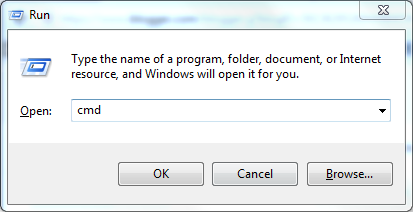
  1. Press Ctrl + R . This should open the "Run" prompt for you.
  2. In this prompt type "cmd" (without quotes) and hit enter.


Or you can open it from start button .
  1. Click on start button.
  2. Search for cmd or command and you should see cmd.exe or command prompt. Both are same. Click on it.


Note if you want to perform some administrative action you need to start the command prompt as Administrator  . To do so -
  1. Click on start button
  2. Search for cmd or command. Right click on cmd.exe or command prompt  and select Run as Administrator.

Getting PID of a process

  1. To get PID of a process is Windows command is tasklist. (Like in Linux we have ps command) 
  2. You can also get it using wmic (Windows Management Instrumentation Command-line) utility (Get PID of specific process). You need to execute following command (explorer.exe is an example)-

    wmic process where "caption='explorer.exe'" get caption,processId


Starting a Process

Starting a process is quite easy. All you have to do is run the following in command line -

start commandName

For example lets say you want to start notepad you can simply type the following in cmd - 

start notepad

Stopping a Process

 One way to stop or terminate Windows process from command line is via the PID of the process. To get the PID use one of the way described in Getting PID of process section  above.
Then to stop a process use the command -

taskill /f /pid pidOfProcess

Complete process (stop and start) of a process is shown in below screenshot -


Important Note : /F option is taskkill denotes force kill. Your unsaved data might be lost!

Note : You can do all the above using Task manager [Ctrl + Shift + Esc] too (UI based). Above method is just a way to do it via command line. It will be specially useful when writing program to execute process like runtime.getruntime().exec() in java.

Saturday, 20 September 2014

Changing Android Launcher

Background

One of the most powerful feature of Android phone according to my opinion is the ability to customize the phone as per your requirements. When you boot up your phone the home screen that you see and the multiple apps screens you see when you click on the Apps shortcut icon (also called apps drawer) together form the launcher. Each Android phone has a default launcher but there are multiple 3rd party launcher Apps available of play store. When people generally talk about "stock Android" their context is about the features provided by the original Android OS (default ones). In this case it would be the default android launcher that comes with the OS provided by Google in the code.


In this post we will see how can we change the launchers in Android.

Launcher you may want to try out


Changing Android Launcher

There are two ways in which we can change the launcher.

  1. For download and install the launcher you want. If you have not tried any launchers before pick one from the above list.
  2. Next go to Apps (Settings -> Apps -> Navigate to All Apps). In this list find the Launcher App (the default one - as shown in the topmost screenshot). Tap on it.
  3. Tap on the Clear Default button. (If this button is greyed out take a look at Notes section below)This should clear your setting for default android launcher.
  4. Next time you click on Home button you will see all the available launchers to select from. You can select the one you have installed. 
  5. Again you will be prompted whether you want this launcher to be used Only once or Always. If you choose Only once you will be prompted to choose Launcher again next time you click on home button.


Alternate Way

Alternately there is an easier way to do this. There is Home category under Device section of Settings where you can directly choose your launcher. (If you do not see Home refer to Notes section below)


Notes

  1. If your Clear Default button is not clickable (greyed out)  then it means either you have already chosen a non default launcher or you have not installed any launcher (All you have is default one).
  2. If you do not see Home category in Device section of your settings that means you have not installed a Launcher or have never changes it before. Try installing the Launcher. If even now Home is not visible change the launcher using the 1st way (Clear Defaults) and then on you should be able to see the Home Category.
  3. Just for the record If you want your app to be recognized as a launcher it has to listen to tte android.intent.category.HOME intent. So basically when you click on Home button on main screen this intent is fired and all activities listening to this intent are shown. Sample manifest would be

    <activity
        android:name="org.openSourceForGeeks.MyActivity"
        android:label="My Android Launcher"
        android:theme="@android:style/Theme.Wallpaper.NoTitleBar.Fullscreen"
        android:launchMode="singleTask"
        android:stateNotNeeded="true"
        >
        <intent-filter>
          <action android:name="android.intent.action.MAIN" />
          <category android:name="android.intent.category.HOME" />
          <category android:name="android.intent.category.DEFAULT" />
        </intent-filter>       
    </activity>


Screenshots of Aviate Launcher from my Moto E


Related Useful Links

Wednesday, 17 September 2014

How to turn off notifications for individual android apps?

Background

Notifications form a very important and integral part of Android operating System. They are used to notify user of various actions/updates. A very apt use case is our native email that we configure. Whenever we get a new Email or have a meeting in the calendar scheduled we should get a notification for the same which is what exactly happens. Developers of Android Apps code their app in such a way. 

But here's the problem. We as an end user do not wish to see all notification. For me I am a programmer as well as gamer. I like to try out new Apps including games. Recent ones that I tried include Clash of Clans,  Boom Beach and Hay Day  But I hate those gaming notifications that pop up. You are in office you get a notification alert. You expect it to be an important mail and it in-fact is some unwanted notification like your life/strength is full again . God.. I hate that moment!


Some developers provide support to disable notifications from the app itself but not all. For example candy crush game provides option to disable notifications - 


Solution


From Android Jelly Bean (4.1) there is support in OS itself for disabling app notification. You can disable any app notification as follows - 

  1. Under each application info screen there is now a checkbox for "show notifications" (assuming the app sends notifications).
  2. Uncheck that and no more notifications from that app should appear in your notification bar.

  3. When you get a notification you don’t want, pull down the notification bar, and hold down the notification until a box pops up that says “App info.” Tap that box. You will see the activity(screen) same as screenshot in step1.


Note :  Most apps, especially games, keep updating. When they update they turn the notifications on again. So you may have to repeat this process on each game update.

I have tested with my apps and it seems to work fine. Do share your experiences with unwanted notifications and if you tried any other method (other than rating it 1 star and uninstalling it :) ).

In older versions of Android than Jelly bean you are really at the mercy of programmer hoping that he/she has provided notification option in the settings.
t> UA-39527780-1 back to top